AI Agent Life, from Zero · part 10
[Agent 101 #10] Installed it, now what? Give your assistant hands — connect your own tools
❯ cat --toc
- The plain version: right now your assistant only has a mouth — this gives it hands
- Intro: the "now what?" after install
- The assistant only has a mouth; tools give it hands
- What is MCP? The "universal outlet" for tools
- What connecting a tool looks like
- What you can do once it's connected
- Takeaways
- The one metaphor to remember
- Why this step is worth the bit of effort
- The most valuable part: connecting your own stuff
- Conclusion
TL;DR
You followed the earlier posts and got your assistant running, but you'll quickly notice one thing: it only chats. Ask it what time today's meeting is and all it can say is "I can't see your calendar." This post fixes that — give it hands. The method is "connecting tools": let it check your folders, run your commands, call services you wrote. The key concept is MCP — think of it as a "universal outlet" standard for tools; plug one in and the assistant can use it. After this, it goes from "a mouth that only talks" to "an assistant that actually does things for you" — and everything it touches is your own stuff.
The plain version: right now your assistant only has a mouth — this gives it hands
By now you've installed an assistant, hooked it to your phone, even had it run daily tasks. But you've probably also hit a small "now what?" —
You chat and it answers everything beautifully. But ask "what time's my meeting this afternoon?" or "check this folder for last month's report" and it stalls: "Sorry, I can't see that."
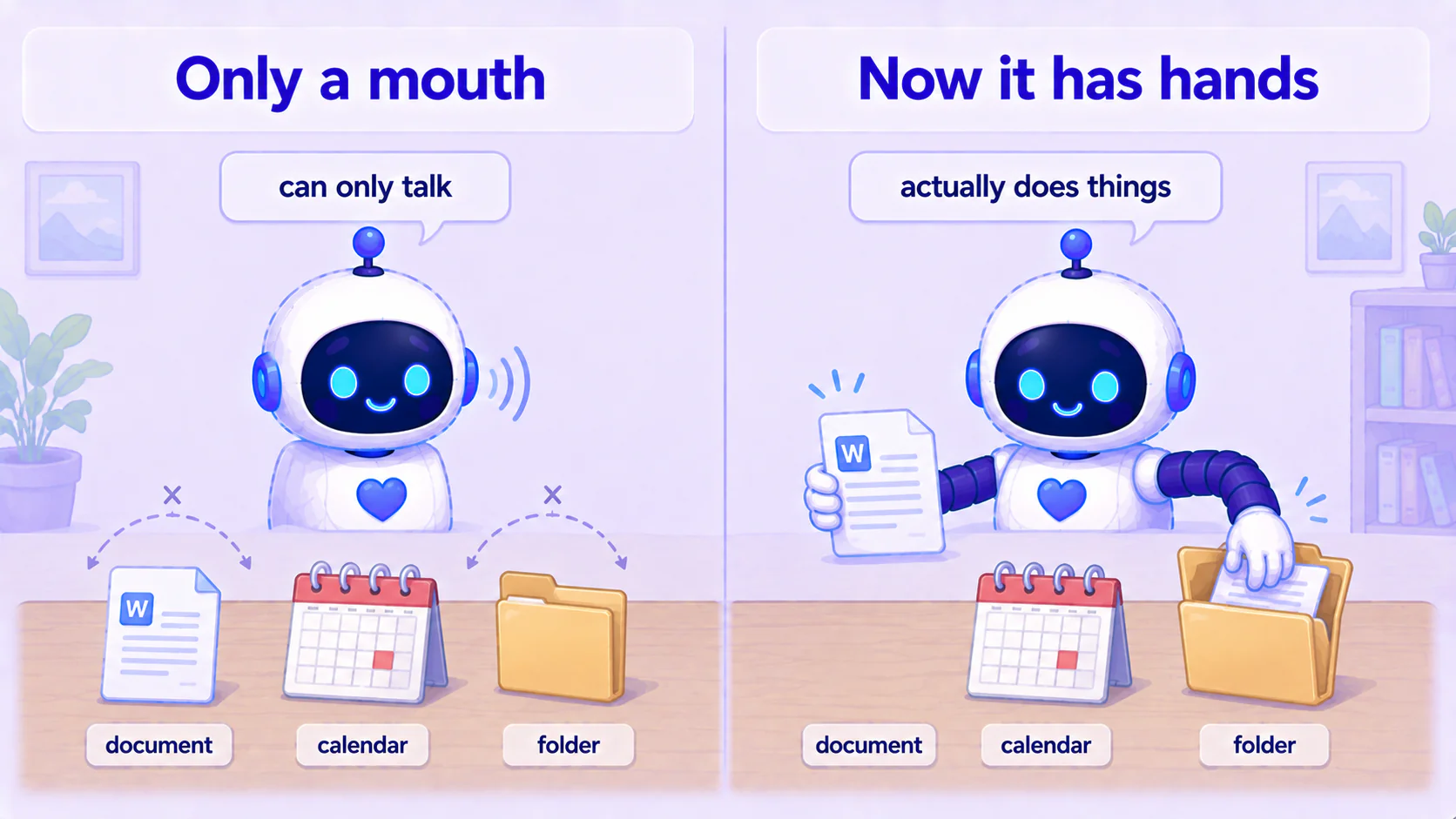
Why? Because so far it only has a mouth. It thinks and talks, but has no hands to touch the outside world.
This post is about giving it hands. With hands, it doesn't just answer — it actually reaches out, checks, runs, and brings things back. Sounds impressive, but the concept is simple; I'll keep it plain.
Intro: the "now what?" after install
A lot of people go through a small letdown after installing an AI assistant.
Installing feels great — finally, my own assistant. But after a few days, you notice it isn't that different from your old ChatGPT: you ask, it answers; it answers well, but it only lives in the chat box. The stuff in your actual life — your files, your calendar, that little site you host — it can't touch any of it.
That's the answer to "installed it, now what?": installing only gave it a brain and a mouth; next you give it hands.
Hands are "tools." Give it a calendar tool and it can see your meetings; give it a folder-reading tool and it can dig up your report; give it a tool that calls your own service and it can poke the little thing you built by hand.
And all of this "connecting tools" runs on one standard — MCP. Let's take it piece by piece.
The assistant only has a mouth; tools give it hands
Let me put this as plainly as possible.
By default, an AI assistant can do exactly two things: read what you type, type something back. It's great at that, but that's all. It's like someone locked in a room who can only talk to you through the door — describe anything and they'll discuss it, but they can't get out or touch anything outside.
"Tools" cut little windows in that door so it can reach a hand out.
- Connect a "check the weather" tool → it can actually look up the temperature instead of guessing from memory.
- Connect a "read a folder" tool → it can actually open a folder on your computer and see what's inside.
- Connect a "call your own service" tool → it can poke that little program you wrote and bring the result back.
How big a difference? The simplest example:
No tool: You ask "what's it like in Taipei right now?" → it says "I don't have live data, but this season it's usually in the twenties." (guessing)
With a weather tool: Same question → it actually checks and replies "It's 26°C in Taipei right now, rain this afternoon."
From "guessing" to "actually checking." That's what hands mean. It's no longer a chatty mouth — it's an assistant that does things for you.
What is MCP? The "universal outlet" for tools
So the question is: how do you "connect" these tools?
That's where MCP comes in. It stands for Model Context Protocol — scary name, dead-simple idea —
MCP is the "universal outlet" standard for tools.
An analogy. Every country used to have differently shaped power sockets; travel with an appliance and you needed a different adapter everywhere — a pain. Once everyone agrees on one socket spec, any appliance works anywhere you plug it in. That's the power of a standard.
AI connecting to tools used to be "every country has a different socket": each tool wired into AI its own way — total chaos. What MCP does is define one socket spec. Build a tool to MCP spec (such a tool is an "MCP server" — picture "a tool built to standard, ready to be plugged in") and any MCP-supporting assistant — including Hermes — can plug it straight in.
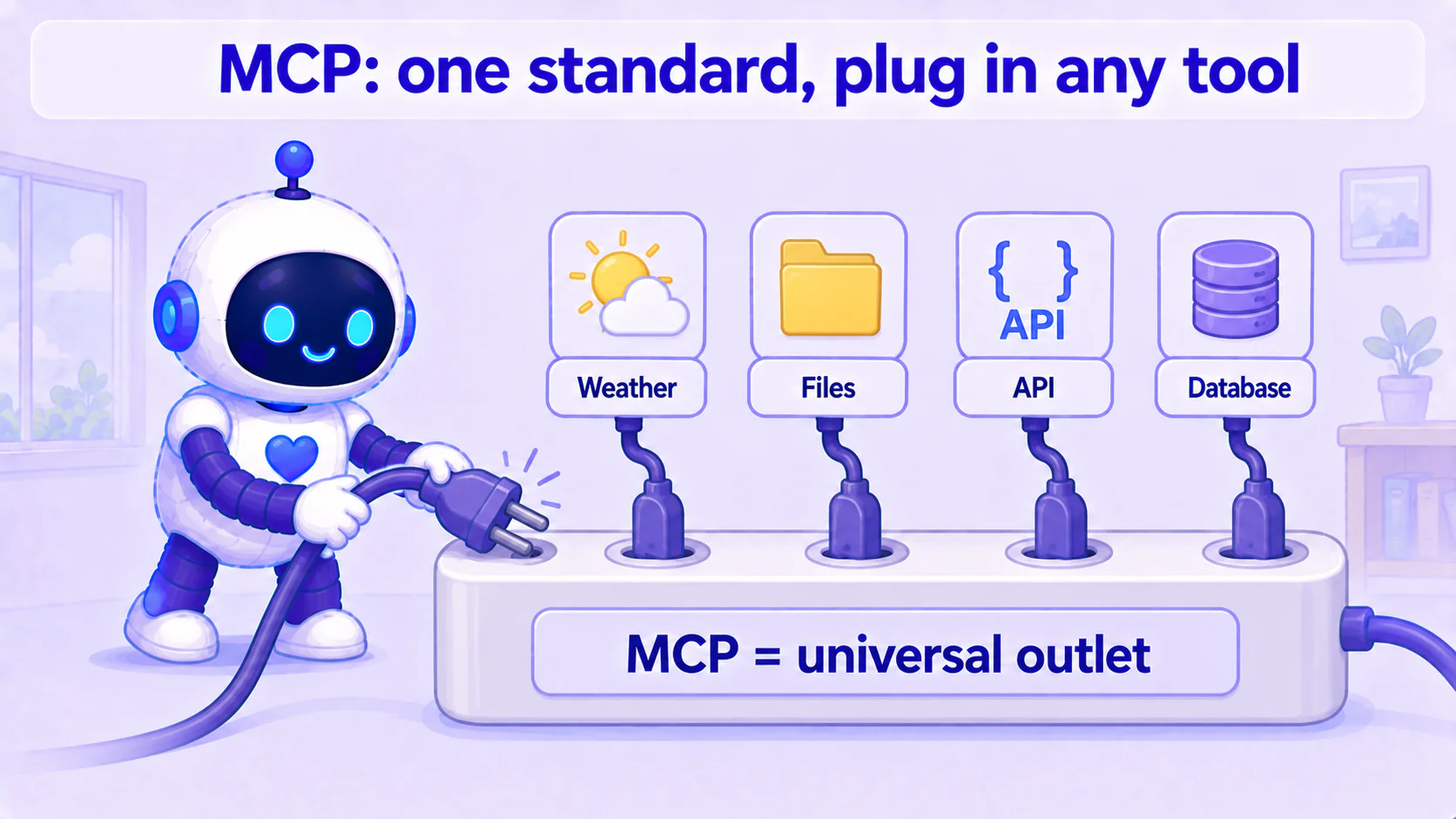
So you'll see "MCP server" a lot. Every time, translate it in your head to: "a tool built to standard, ready to plug in for the assistant to use." That's it, no need to overthink.
Why is this good for you? Once there's a universal outlet, tools multiply and get easier to connect. You can plug in MCP servers other people built, and build your own to the same spec the same way. Learn the pattern once and it applies everywhere.
What connecting a tool looks like
With the concept clear, what does connecting one actually look like?
Honestly: connecting tools is a touch more technical than "installing the assistant" or "hooking up your phone." But don't worry — the technical part isn't "hard to understand," it's "you have to touch a config file." The whole logic is one sentence:
In Hermes's config, tell it "where your tool/MCP server is," and it'll connect.
That's it. The rest is detail. In practice, roughly three steps:
- Get a tool (MCP server) ready. Either one someone else built (plenty online — weather, file reading, calendar) or a small service you wrote. The point is it implements the MCP spec.
- Point Hermes at it in config. You add a bit of "I want to connect this tool, it's at this location" to Hermes's config — maybe a command, a URL, or a local program path. What the exact config key is and which file it lives in vary by Hermes version, so I won't hand you one line to copy blindly; the right move is to check the config docs for your version, find the "MCP" or "tools" section, and fill it in their format.
- Restart, then ask it. After connecting, restart the assistant and just ask in plain words: "Can you check the weather now?" or "Can you read this folder?" If it works, it'll go do it; if not, recheck the location in step 2.
Note I deliberately flagged step 2 as "varies by version." That's not laziness — MCP is evolving fast and each framework's config keys get tweaked now and then. Rather than give you one possibly-stale line, I'd rather you grab the unchanging core: "point it at your tool in config." Hold that and no matter how versions shift, you know what you're looking for.
What you can do once it's connected
The best part of connecting tools is it turns your assistant from "a generic chatbot" into "an assistant that understands your own stuff." Two concrete examples people actually run.
Example 1: connect a data-lookup tool.
Say you connect a "check the weather" MCP server (these ready-made ones are everywhere). Now that morning task can level up — back in #6 you had it send you a daily briefing; now you can say "and check today's weather, remind me to bring an umbrella if it'll rain." It's no longer guessing — it actually checks first. Same idea for stock prices, exchange rates, whether some site updated — if there's a tool, it can reach for it.
Example 2: connect a service you wrote yourself.
This is the part that's truly yours. Say you host a little thing — a budgeting app, a service that manages your collection list, an internal tool you wrote for work. You package it as an MCP server (same way you connect a ready-made tool), then point Hermes at it in config.
What happens then? You can just tell the assistant, in plain words, to operate your own service:
"Log a lunch expense of 180 in my budgeting service today."
"Go to my collection list service and read me the ones I added last week."
It'll reach through that tool, actually poke your service, and get it done. At that point it's not just "an assistant" — it's "an assistant that understands your whole world" — because the tools in its hands all connect to your own stuff.
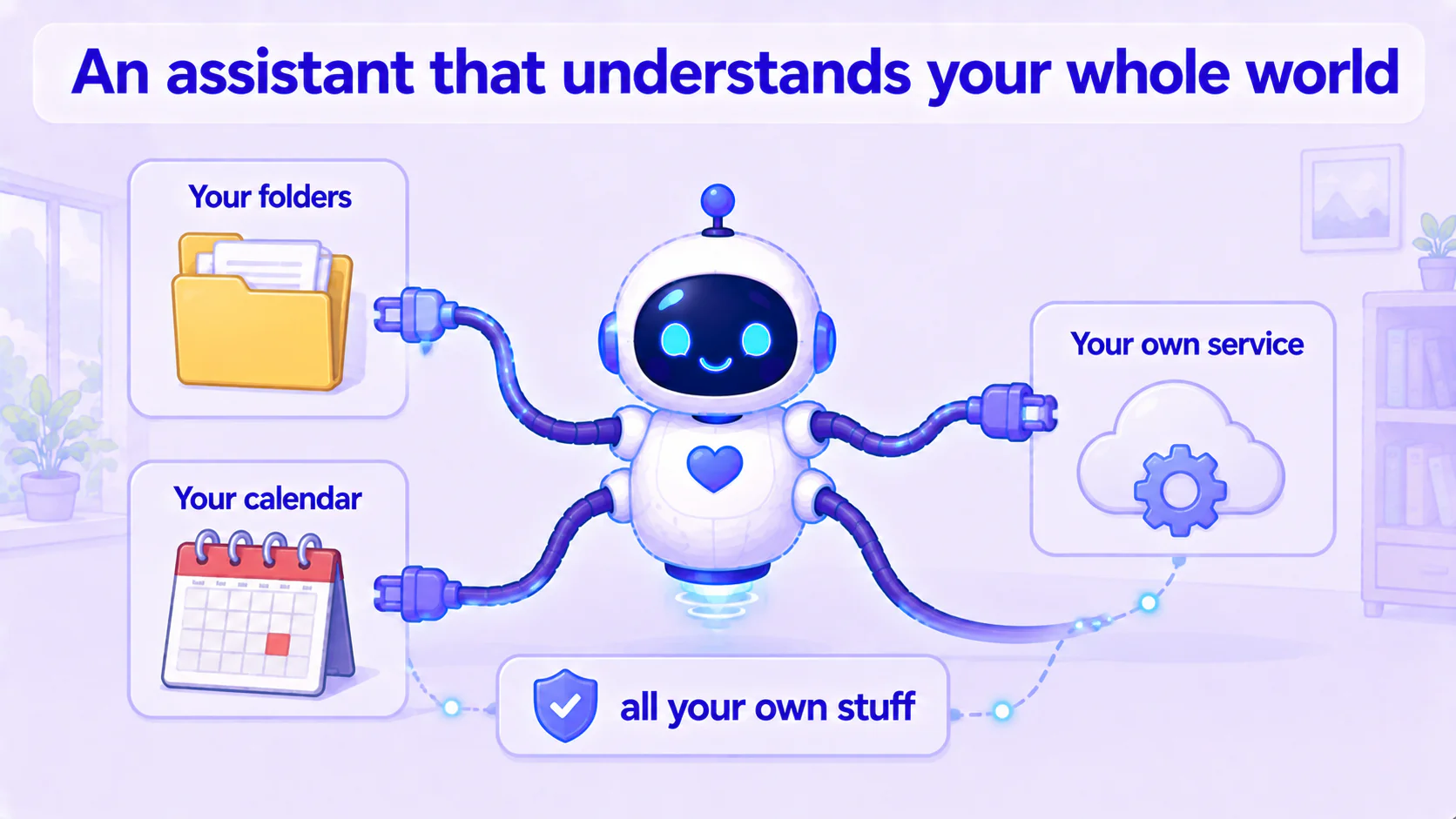
And — this matters — it's all yours. You decide which tools to connect, what data they touch, and what you let it do. No one in the middle deciding "this you can connect, that you can't." Same assistant — you decide how far its hands reach.
Takeaways
The one metaphor to remember
If you remember one thing: the assistant starts with only a mouth (talks); connecting tools gives it hands (does the real thing). And MCP is the universal outlet for tools — make tools to a standard and the assistant plugs in and uses them. A mouth chats; hands get things done. A chatty assistant is handy; an assistant that gets things done actually saves you effort.
Why this step is worth the bit of effort
Connecting tools is a touch more technical, but it's the turning point of the whole thing's value. Earlier posts "raised" the assistant; this one lets it "go to work." Once it can touch your real files, calendar, and own services, it stops being a chat toy and becomes a helper you actually use daily. That bit of config effort buys a step change.
The most valuable part: connecting your own stuff
Plenty of AI out there can connect tools, but mostly the ones they pick. Yours is different — you connect your own tools, your own data, your own services, all running on your side. That means your assistant grows into a shape only yours can be: it knows your budgeting habits, your collection, your own little work tools. No one can copy it, because it's fed on your own stuff.
Conclusion
- The answer to "installed it, now what?" is: give it hands — connect tools.
- By default an assistant only has a mouth (read text, type text); connect tools and it can actually look things up, run commands, call your own services.
- MCP = the universal outlet standard for tools. Make a tool an MCP server and the assistant can plug in; learn it once and it works everywhere.
- Core of connecting: point Hermes at your tool/MCP server in config. Exact keys vary by version — check your version's "MCP/tools" docs and fill it in; don't copy possibly-stale commands.
- Two ways to start: connect a ready-made lookup tool (e.g. weather), or connect a small service you wrote. The latter is the part that's truly yours.
- ⚠️ Honest note: this step is a touch more technical; getting stuck the first time is normal — usually it's "the location wasn't set right," so recheck that config section. It all runs on your side — what you connect, how much you open up, is your call.
This series — AI Agent Life, from Zero:
- Part 1: AI assistant vs ChatGPT
- Part 2: What is an agent framework
- Part 3: The ChatGPT-brain + Hermes-body combo
- Part 4: Install Hermes Desktop
- Part 5: Connect Hermes to Telegram
- Part 6: Let your assistant run on its own
- Part 7: Give your AI assistant eyes and ears
- Part 8: One person, a whole team of assistants
- Part 9: Swap your assistant's brain for a local one
- Part 10: Give your assistant hands — connect your own tools (this post)
FAQ
- My assistant is installed but it only seems to chat — how do I make it actually do things?
- Because right now it only has a 'mouth' — it talks and answers, but has no hands to touch the outside world. To make it act, you connect tools: a tool that looks up data, runs a command, or calls one of your services. Once connected, it stops just answering and actually goes, checks, runs, and brings the result back.
- What is MCP? It sounds technical.
- Think of MCP (Model Context Protocol) as a 'universal outlet standard' for tools. Tools used to connect to AI in their own incompatible ways — a mess. MCP sets one standard: build a tool to spec (an 'MCP server') and any supporting assistant can plug it in. Simple idea — one outlet, plug in and go.
- Do I need to code to connect tools?
- For ready-made tools, mostly no — people have packaged common tools (weather, lookups, file ops) as MCP servers; you just point Hermes at them in config. If you want to connect a small service you wrote yourself, that takes a little code — but the bar is lower than you'd think, and the way you connect it is the same.
- How is this different from ChatGPT's plugins?
- It's that it's yours. You connect your own tools, your own data, your own services, all running on your side, with no one in the middle deciding what you can and can't connect. Same assistant — how many tools, and which, is up to you.
Read next
- 2026-06-16[Agent 101 #6] Let your assistant run on its own: daily research that pings your Telegram
The last and most satisfying step: set up a task that runs itself. Tell it in plain words, and every day it researches what you care about, sums it up, and messages your Telegram. Set it once, close the laptop, and it pings you the next morning.
- 2026-06-16[Agent 101 #5] Use your AI assistant from your phone: connect Hermes to Telegram
Order your assistant around from your phone. Chat with one official Telegram bot, get a key (token), hand it to Hermes — done. No public URL, no webhook, no tunnel, because Hermes fetches messages from Telegram itself.
- 2026-06-16[Agent 101 #4] How to install Hermes Agent Desktop: your first AI assistant, no terminal
Install the Hermes Agent desktop app — no terminal. Download it, let it auto-install dependencies, sign in with your ChatGPT account, and your first AI assistant is running in about 15 minutes.
- 2026-06-16[Agent 101 #3] The fixed combo we'll use: ChatGPT as the brain, Hermes as the body
An AI assistant = a brain + a body. Use your ChatGPT account as the brain and Hermes as the body — one fixed combo, nothing to choose. Here's why it's set up this way, and what to have ready before you install.
Don't miss the next one
Subscribe, and you won't.
One-click unsubscribe anytime.