AI Agent Life, from Zero · part 5
[Agent 101 #5] Use your AI assistant from your phone: connect Hermes to Telegram
❯ cat --toc
- The plain version: your assistant lives on your computer — this puts it in your pocket
- The setup: your assistant goes and gets the messages itself
- Step 1: Chat with @BotFather to create your bot and get the key
- Step 2: Hand the key to Hermes and tell it to turn Telegram on
- Step 3: Start the gateway and chat with your assistant on Telegram
- While you're at it: lock it to just you
- Push vs pull: the one idea worth keeping
- A two-minute job — what actually trips people up
TL;DR
Want to talk to your assistant from your phone? Connect it to Telegram. Chat with Telegram's official @BotFather, run one command, grab a key (token), hand it to Hermes to drop into the config, start the gateway — and you're messaging your own assistant from Telegram. No public URL, no webhook, no tunnel, because Hermes goes and fetches messages from Telegram itself. The only requirement is that your network can reach Telegram.
The plain version: your assistant lives on your computer — this puts it in your pocket
So far your assistant runs on your computer, and you talk to it there. This post moves it into your pocket: connect it to Telegram so you can order it around from your phone — the same place you text your friends, no separate app, no website to open.
And the nice part: it's genuinely a two-or-three-minute job. You chat with one bot, copy one key, hand it to Hermes. That's it.
The setup: your assistant goes and gets the messages itself
Here's the one idea that makes this so easy.
Some integrations need the outside world to deliver messages to your computer — which means your computer first needs a public address so the messages know where to land. That's the fiddly path: open a door to the internet, register an address, and verify it.
Telegram flips it. Your assistant just walks up to Telegram every little while and asks, "any messages for me?" — and grabs them if so. This "go and fetch it yourself" approach is called polling. Because your assistant is the one reaching out, the outside world never needs to know where your computer lives — no public address, no webhook, no tunnel.
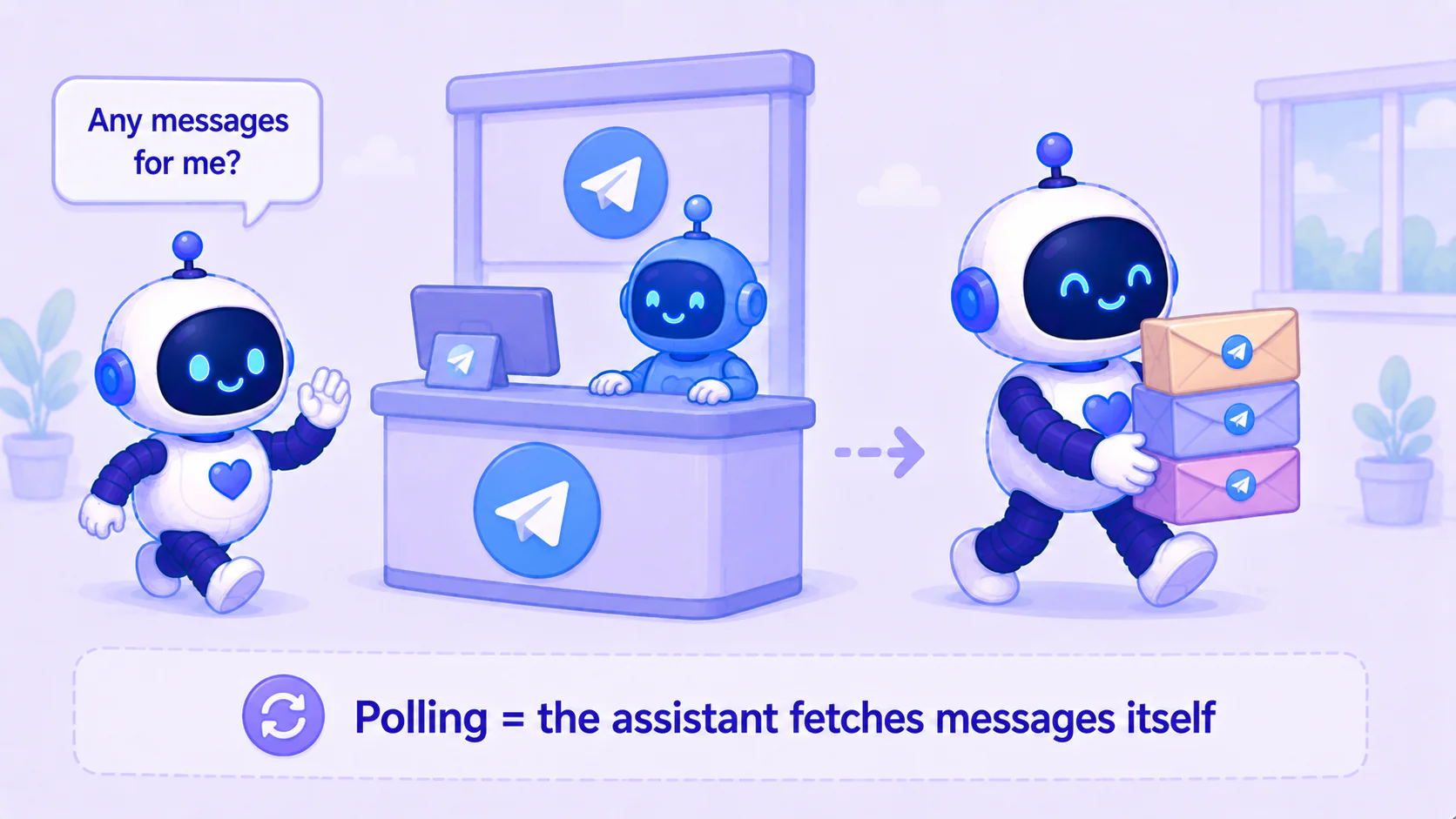
So all that's left for you is three small things: create a bot with @BotFather, grab a key, and hand the key to Hermes.
Step 1: Chat with @BotFather to create your bot and get the key
Telegram turns "create a bot" into a chat with a bot — it's called @BotFather (the official "father of bots").
-
Open Telegram (phone or desktop, either works), search
@BotFather, open the official account with the blue checkmark, and hit Start. -
Send it one command:
/newbot. -
It asks two questions; just answer them:
- A name for the bot (display name, anything you like, e.g. "My Assistant").
- A username — this must be unique and end in
bot, e.g.my_assistant_bot. If it's taken, it'll ask for another.
-
Once you've named it, @BotFather replies with a message containing a long key that looks like this:
123456789:AAExampleExampleExampleExampleExampleThat string is your token (key) — Hermes uses it to send and receive your messages through Telegram.
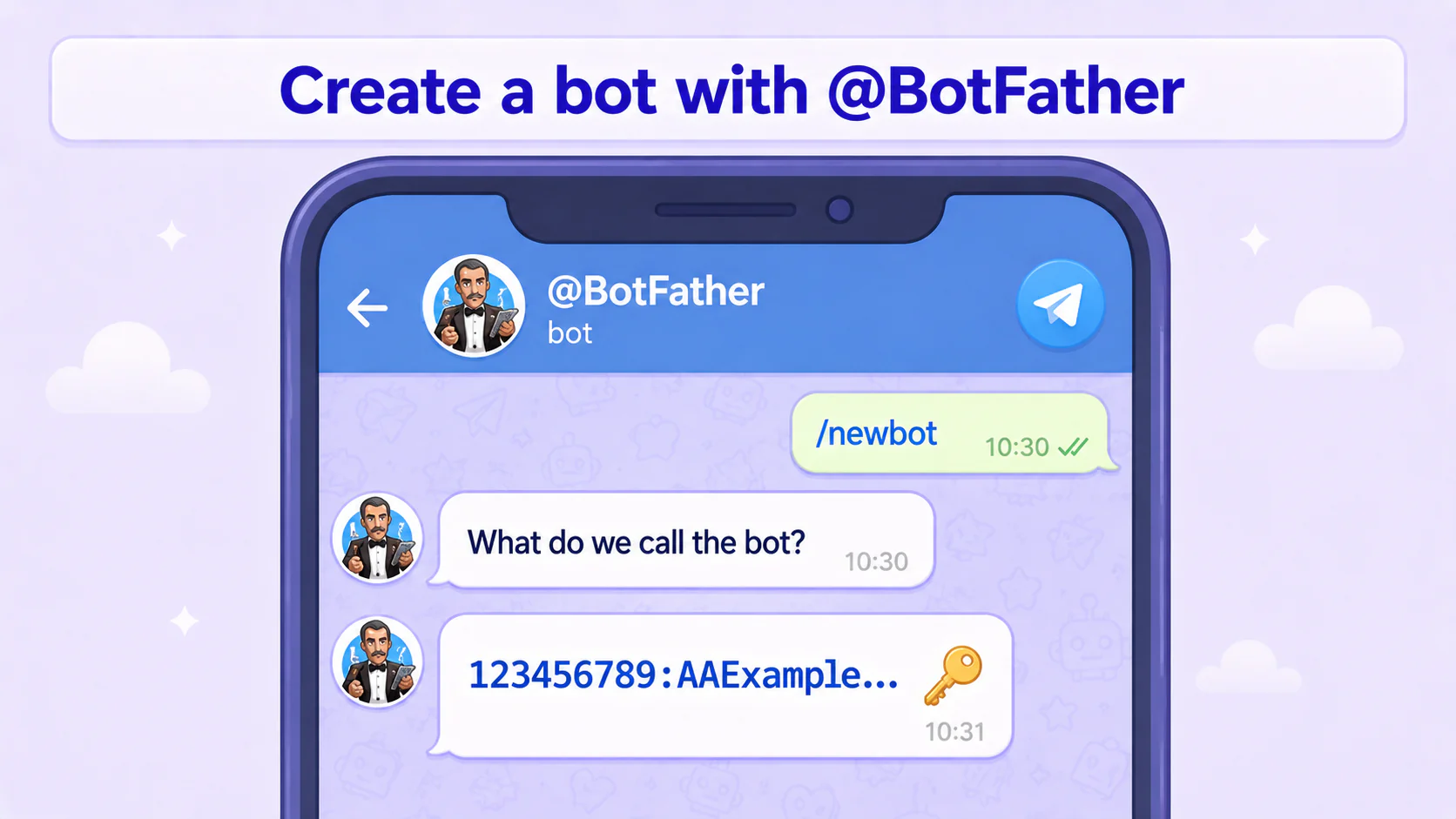
🔒 This key is a password. Anyone who has it can control your bot, so: don't put it in screenshots, don't paste it into public groups or web pages. If it ever leaks, send
/revoketo @BotFather to reissue a fresh one — the old one stops working.
Step 2: Hand the key to Hermes and tell it to turn Telegram on
Once you have the key, the technical setup goes to Hermes, same as before.
Following the safety habit from earlier posts, don't paste the key straight into the chat box (it'd stay in the chat history). Save it to a text file first and have Hermes read it:
- Open a plain text editor (TextEdit on Mac, Notepad on Windows) and paste in the token from @BotFather.
- Save it to your desktop as, say,
telegram-token.txt. - Open Hermes and tell it (plain words are fine):
I created a Telegram bot. The key (token) is in
telegram-token.txton my desktop. Please read that file, write it into the Telegram config, and enable the Telegram channel. You can delete the file afterward.
Hermes handles its own setup (writing the key into its config, switching the Telegram channel on) — you don't touch any of it, and you don't need to remember which file or which setting. The exact config location varies by Hermes version, so let it figure that out.
If you're curious what's happening under the hood (no need to edit anything yourself): Hermes's docs use
TELEGRAM_BOT_TOKENfor the key (andTELEGRAM_ALLOWED_USERSfor the allow-list later). The wizard writes them for you, and the exact config-file location can vary by version — which is why letting it do the work is safest.
Step 3: Start the gateway and chat with your assistant on Telegram
Last step: make sure the Hermes gateway is running.
The gateway is Hermes's background service that handles scheduling and sends/receives messages — it's what does the "go fetch the messages" for Telegram, so it has to be on. Tell Hermes:
Start the gateway so you'll go pick up my Telegram messages. And set it to start automatically on boot.
Once it's running, open Telegram on your phone, search for the bot username you just made (@..._bot), hit Start, and send it a message:
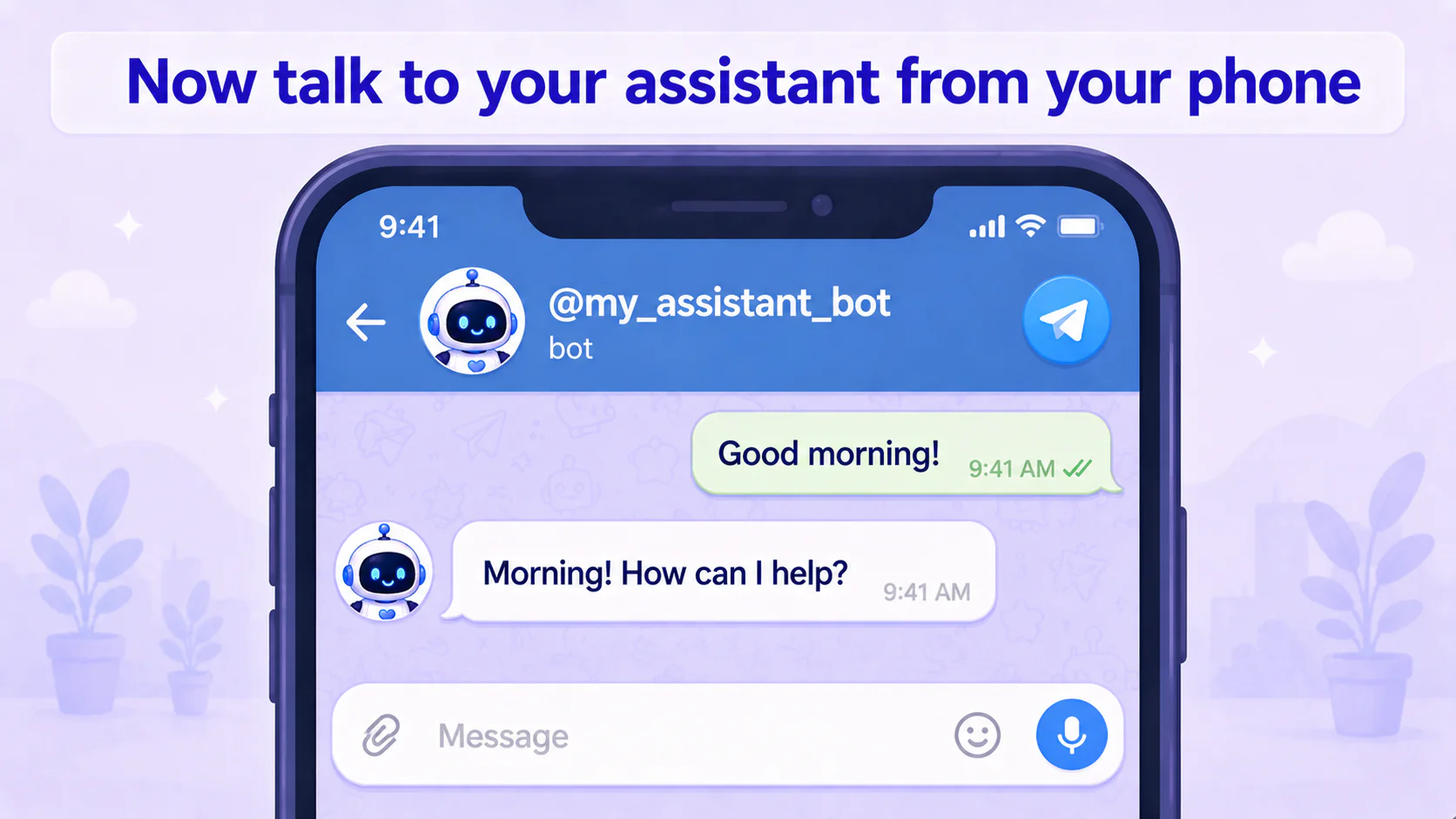
It replies — and from this moment, you don't need to open your computer; your phone is enough to command your assistant. It can also message you first (the "runs on its own, pings you" setup from the next post works over Telegram just the same).
While you're at it: lock it to just you
Remember to set an allow-list so only you can use it — otherwise anyone who finds the bot can order your assistant around.
How: the easiest way to get your numeric Telegram user ID is to message @userinfobot on Telegram — it replies with your ID. (Alternatively, send your own bot a message and your ID shows up in Hermes's logs.) Then tell Hermes:
My Telegram user ID is
<your number>. Set it so only I can use this bot.
It adds you to the allow-list (this maps to a setting called TELEGRAM_ALLOWED_USERS, but you don't edit it yourself — just describe it in plain words and let it do it). Until that's set, the bot may ignore everyone for safety — that's normal.
Push vs pull: the one idea worth keeping
There's a judgment call hiding in here that you'll reuse all over the place later: before you connect anything, ask whether it waits for delivery or fetches things itself.
If the other side has to push messages to you, you first need a public address and you have to register it — naturally more steps. If it can pull messages itself (like Telegram's polling), it doesn't matter where your computer lives, and setup is light. Next time you hook up some other service, figure out which kind it is and you'll roughly know whether it'll be a hassle.
Two honest caveats: (1) Some corporate networks and some regions block Telegram — if even the Telegram app itself struggles where you are, this route won't work. (2) That token is a key — don't leak it; if you do, reissue from @BotFather.
A two-minute job — what actually trips people up
Honestly this one barely takes any time — a couple of minutes with @BotFather to get the key, and the rest goes to Hermes. What actually trips people up isn't a technical barrier; it's small stuff like "forgot to start the gateway" or "haven't set the allow-list yet." Paste the symptom back to Hermes and it'll diagnose it with you.
Get the lightest path working first, then worry about features later — the same attitude this whole series runs on. The point isn't which platform has the most features; it's getting your assistant to reply to you on your phone. Once it does, you've got an assistant in your pocket.
This series — AI Agent Life, from Zero:
- Part 1: AI assistant vs ChatGPT
- Part 2: What is an agent framework
- Part 3: The ChatGPT-brain + Hermes-body combo
- Part 4: Install Hermes Desktop
- Part 5: Connect Hermes to Telegram, use it from your phone (this post)
- Part 6: Let your assistant run on its own
- Part 7: Give your AI assistant eyes and ears
Further reading: Telegram @BotFather, Hermes docs
FAQ
- How do I use my Hermes assistant from my phone?
- Connect it to Telegram. Chat with Telegram's official @BotFather, run one command to create a bot, get a key (token), and hand that token to Hermes. Hermes pulls messages from Telegram itself (called polling), so your computer needs no public address and no webhook — you just message your bot from the Telegram app on your phone.
- What is a token, and how do I use it?
- A token is the string @BotFather gives you after it creates your bot — it's the bot's key, and anyone who has it can control your bot, so don't leak it. You don't need any technical know-how to use it: hand it to Hermes and say 'write this key into the config and turn Telegram on,' and Hermes handles all the setup on its side.
- I messaged my bot and it won't reply — why?
- Three usual suspects: (1) the Hermes gateway (the background service) isn't running; (2) the token is wrong or didn't save; (3) you haven't added yourself to the allow-list (without it, the bot may ignore everyone for safety). Paste the symptom back to Hermes and it'll walk you through checking each one.
- Anything to watch out for with Telegram?
- Two things. Some corporate networks and some regions block Telegram — if you can't reach it at all, this route won't work. And the token is a key: don't paste it into screenshots or anywhere public; if it leaks, message @BotFather and reissue a new one.
Read next
- 2026-06-16[Agent 101 #6] Let your assistant run on its own: daily research that pings your Telegram
The last and most satisfying step: set up a task that runs itself. Tell it in plain words, and every day it researches what you care about, sums it up, and messages your Telegram. Set it once, close the laptop, and it pings you the next morning.
- 2026-06-16[Agent 101 #4] How to install Hermes Agent Desktop: your first AI assistant, no terminal
Install the Hermes Agent desktop app — no terminal. Download it, let it auto-install dependencies, sign in with your ChatGPT account, and your first AI assistant is running in about 15 minutes.
- 2026-06-20[Agent 101 #10] Installed it, now what? Give your assistant hands — connect your own tools
Your assistant is installed, but right now it only talks — it's all mouth. This post gives it hands: connect tools so it actually checks your folders, runs your commands, calls services you wrote yourself. The key idea is MCP, the 'universal outlet' standard for tools — plug one in and the assistant can use it. All running on your side, connected to your own stuff.
- 2026-06-16[Agent 101 #3] The fixed combo we'll use: ChatGPT as the brain, Hermes as the body
An AI assistant = a brain + a body. Use your ChatGPT account as the brain and Hermes as the body — one fixed combo, nothing to choose. Here's why it's set up this way, and what to have ready before you install.
Don't miss the next one
Subscribe, and you won't.
One-click unsubscribe anytime.