One face, eight outfits: keeping a character consistent with Qwen-Image 2.1 on an RTX 5090
❯ cat --toc
- Eight outfits, one face: the mole and the hairpin survived every edit
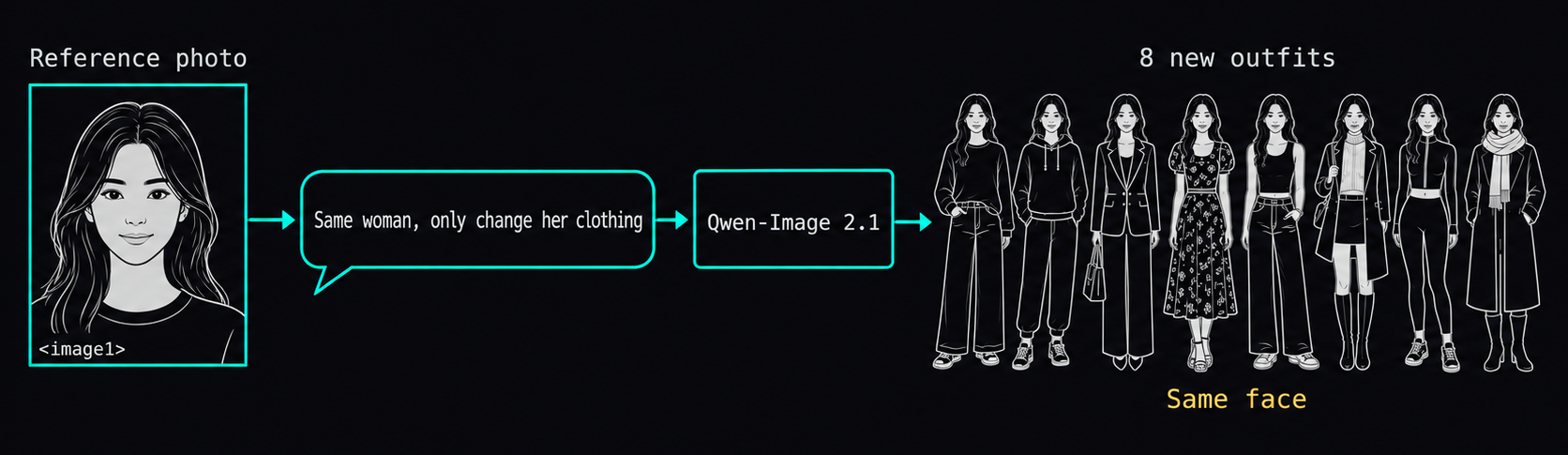
- How to do it: one reference image, one template, a prompt that lists what stays
- Step 1: get ComfyUI and three files
- Step 2: load a reference image into the edit template
- Step 3: say what stays, lock the framing, then say the one change
- Step 4: check each result, reroll the odd one out
- The reverse works too: same qipao, eight places, and the lighting follows
- Outfit and location together: do it in two passes
- Text in images: a Chinese sign came out right, with two misses elsewhere
- Transparent PNG straight out of the model, no background removal
- Speed: about 5.5 s per edit on the 5090, about 11 s on a modded 2080 Ti
- Deep dive: settings, prompts, two ComfyUI 0.37 gotchas, and raw timings
- Machine and settings
- The base prompt (text-to-image, no reference)
- The location prompt (night market)
- Why the first batch drifted: the canvas didn't match the reference
- The suit and coat still went wide on the right canvas
- Small pose drift in the outfit set
- ComfyUI 0.37.0 gotcha 1: two required inputs on the text encode node
- Gotcha 2: an identical workflow hits the cache in 0.0 s
- Regular outputs carry an alpha channel too
- Raw speed table
- Why no article image uses the 4-step LoRA
- Getting the 2080 Ti fast: fp16, then the 6-step turbo
TL;DR
One reference photo plus a prompt that says "same woman, only change her clothing" gave me 8 outfits from Qwen-Image 2.1 on an RTX 5090. The face, the mole under her left eye, the wooden hairpin and the background held in all 8. Swapping locations instead, or both at once, works too. An 8-character Traditional Chinese sign came out right, and transparent PNG is built in. Two misses: a landmark hid one letter of a poster headline, and a menu drew 亞 in its simplified form once.
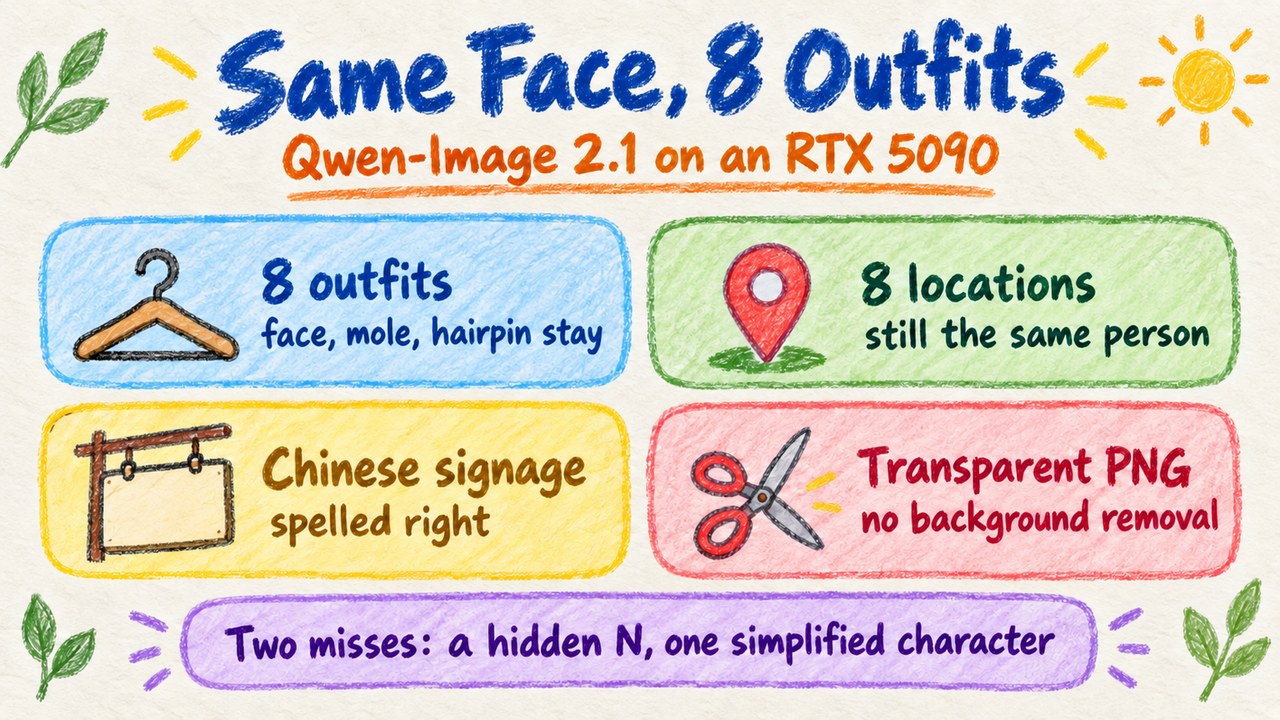
The short version: one face through new outfits and new places, cut stop-motion style.
Before this, keeping one character consistent across images meant training a character LoRA (a small add-on weight file that teaches the model one specific face). Without it, asking for the same person in different clothes usually gave me a different person.
Qwen-Image 2.1 is an open-weight image model from the Qwen team, released on September 20, 2026. The weights are free to download under Qwen's research license; commercial use needs a separate license from Qwen. It accepts reference images, meaning you hand it an existing picture and tell it what to keep. I wanted to know if that could replace the LoRA step. For outfit changes, it can.
Eight outfits, one face: the mole and the hairpin survived every edit
I started from one reference image: a young woman in a pale-blue qipao in an old Taiwanese tea house. Then I asked for eight edits: a pink Song-dynasty Hanfu with embroidered plum blossoms, a Taiwanese high-school uniform, a charcoal business suit, a chef jacket with a tall hat, a NASA-style spacesuit with the helmet under her left arm, a camel winter coat with a red scarf, a pastel idol stage costume, and a black wuxia outfit with a sword on her back.
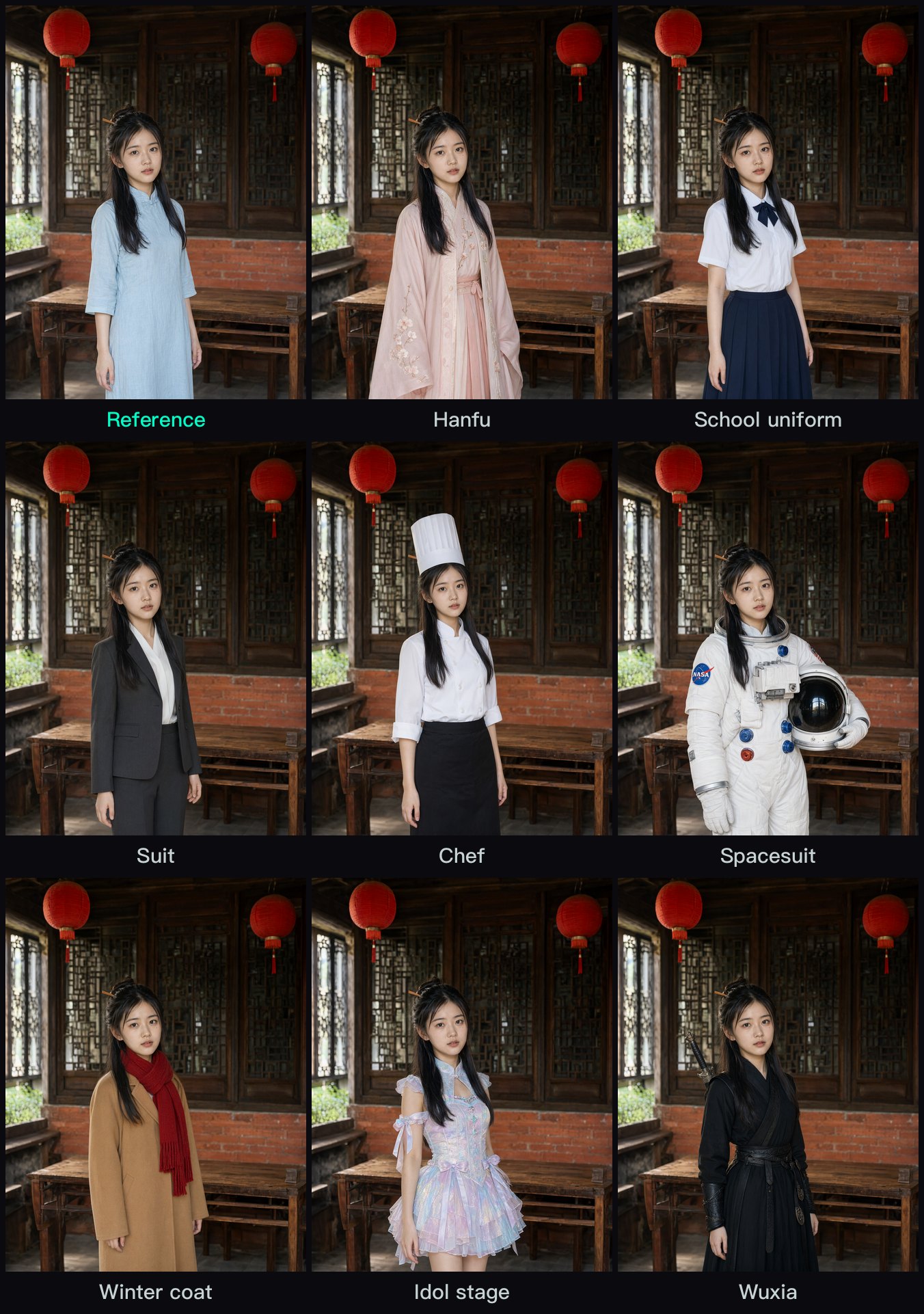
The background didn't move either. Red lanterns, lattice windows, brick wall and tea table sit in the same place in all eight, and so does she: same spot, same size in the frame. That part took a second attempt, covered in the how-to.
The face is the part that matters, so I cropped all nine.
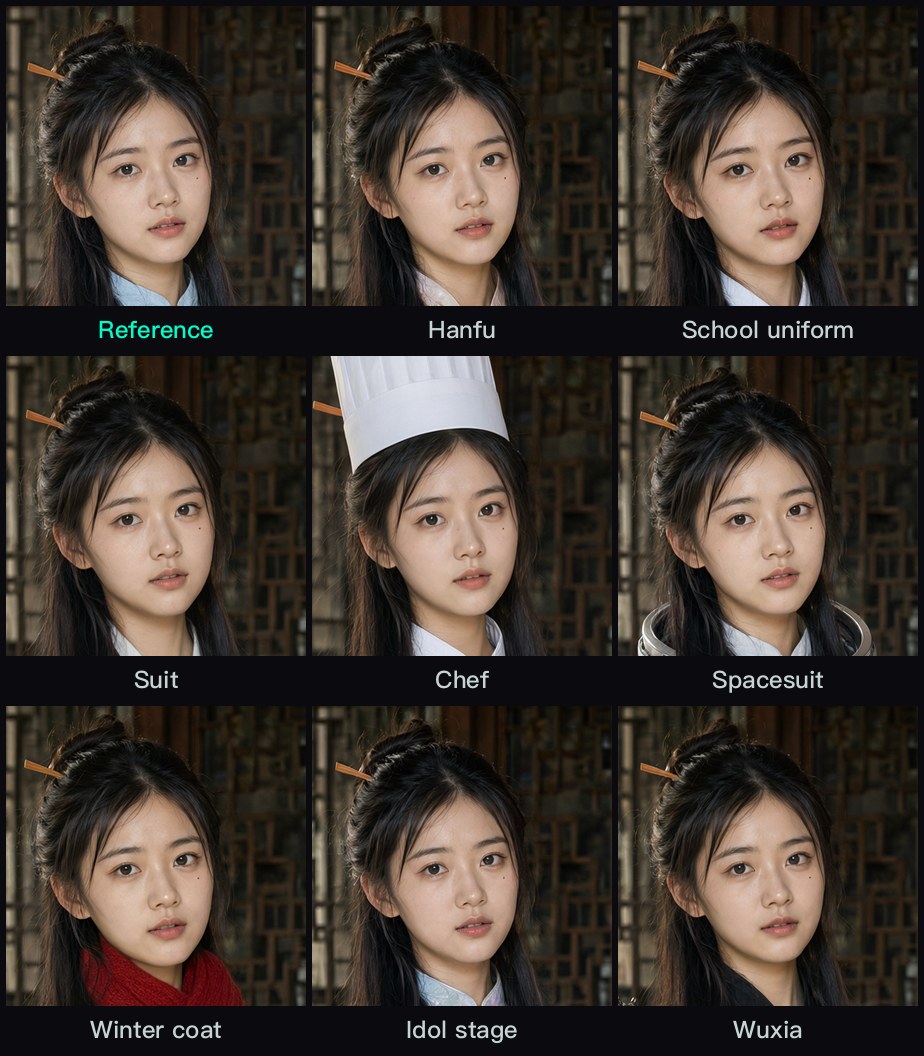
The mole under her left eye is there in all nine. In the chef image, the wooden hairpin still pokes out beside the hat. I didn't train anything for this.
How to do it: one reference image, one template, a prompt that lists what stays
This section is for running it on your own machine, so expect file names and settings. If you only want to see what it can do, skip to the next section.
Step 1: get ComfyUI and three files
ComfyUI is a free, local, node-based image generation app: you wire boxes together into a pipeline, and the official Qwen-Image 2.1 templates come pre-wired. I used ComfyUI 0.37.0. Any version that ships the Qwen-Image 2.1 templates works. The files come from Comfy-Org/Qwen-Image-2.1. The diffusion model is the one to pay attention to:
| Folder | File | Size |
|---|---|---|
diffusion_models/ | qwen_image_2.1_int8_convrot.safetensors | 6.76 GiB |
text_encoders/ | qwen3vl_8b_w4a8.safetensors | 5.88 GiB |
vae/ | qwen_image_2.1_vae_bf16.safetensors | 0.63 GiB |
The int8 model is Comfy-Org's quantized version. In my own same-prompt comparison its quality was close to bf16, at half the file size, and it fits easily in the 5090's 32 GB. The text encoder reads your prompt and the reference image. I actually ran a community de-refusal ("heretic") variant of the w4a8 encoder, but every prompt here is ordinary and the official one is fine.
Step 2: load a reference image into the edit template
I generated my reference with Qwen-Image 2.1 too: the same description with three seeds (the random number that decides which variation you get), and I picked one of the three. Your own photo works just as well.
Open the ComfyUI template "Qwen Image 2.1 Image Edit". The template preselects a different text encoder (qwen3vl_8b_int8_convrot), so switch its loader to the qwen3vl_8b_w4a8 file you downloaded, and leave the template's optional prompt-rewriting branch off. Then wire the reference into the image_1 input of the "Text Encode Qwen Image 2.1" node, and refer to it as <image1> in the prompt. The official templates wire up to 10 reference images. This post only uses one.
The template has a custom_size switch. Leave it off, which is the default. Off means the sampler starts from the latent output of Text Encode Qwen Image 2.1, which is sized to match the resized reference. On means it uses whatever width and height you type. My first batch did the equivalent of turning it on: I fed a 1536x2048 canvas while the node had resized the reference to 1344x1760, and her position and size drifted from image to image. Details in the deep dive. I set resolution to 1536, so the reference is resized to 1344x1760 and the outputs come out at that size too.
Step 3: say what stays, lock the framing, then say the one change
This is the suit prompt, verbatim:
The same woman from <image1>, with exactly the same face, the same small mole under her left eye, the same hairstyle with the wooden hairpin, the same standing pose, in exactly the same tea house background with the same red lanterns, windows, brick wall, tea table and lighting. Keep exactly the same framing, crop and camera distance as <image1>. Only change her clothing: she now wears a tailored charcoal-grey business suit jacket and trousers with a white blouse. Keep everything else unchanged. Photorealistic.
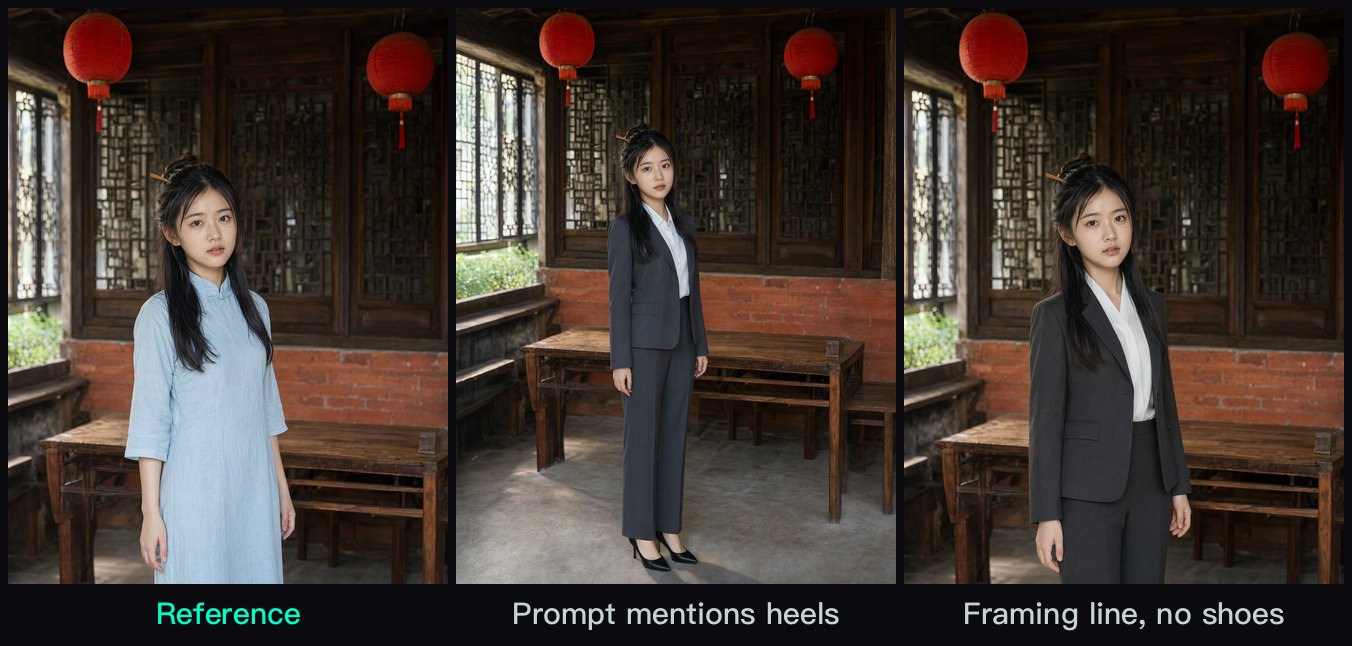
The "Keep exactly the same framing..." sentence came later. Without it, the suit and the winter coat pulled the camera back into a head-to-toe shot. Leave shoes out of the outfit description too: mention heels or boots and the model wants the feet in frame.
Everything before the clothing sentence is the same across all eight. You don't need to copy my wording.
Step 4: check each result, reroll the odd one out
Most edits land on the first try. When her face sat in the wrong spot, I ran the same prompt with 3 more seeds and kept the one closest to the reference. That happened for 7 of the 23 edits in this post.
Sampling: 40 steps, euler, simple, cfg 1.0. The official template defaults to 25 steps; the official pipeline guidance is about 40 to 50.
The reverse works too: same qipao, eight places, and the lighting follows
Then I flipped it. I kept the outfit and pose fixed, kept the framing line, and changed only the background and lighting, with "Only change the background and lighting: she now stands in ..." in the prompt. Eight places: a Taiwanese night market, a tropical beach, a snowy mountain village, a rainy neon Tokyo street, an old library, a space station with Earth in the window, a cherry-blossom path, and a desert at sunset.
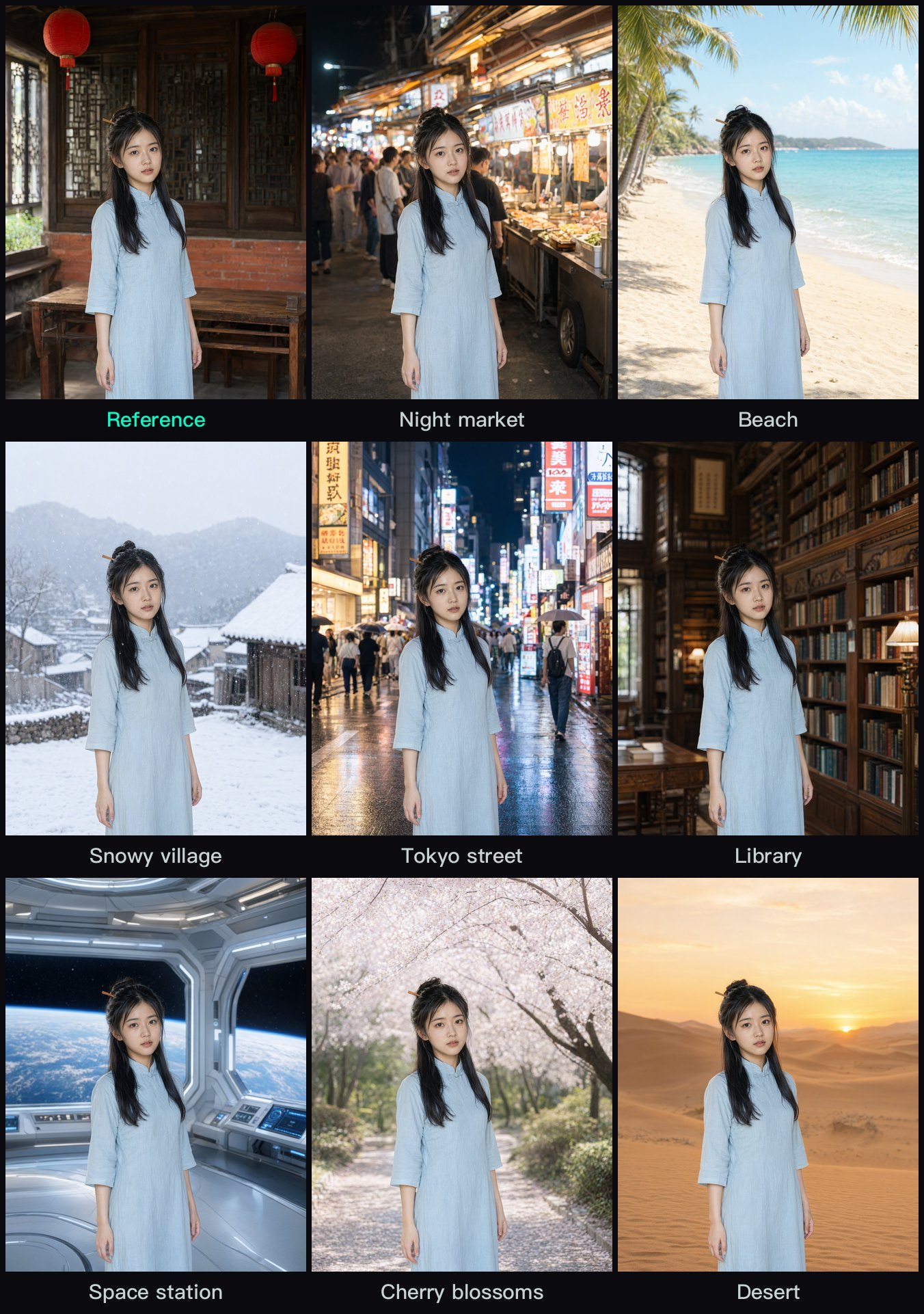
The lighting follows the scene instead of being pasted on. Neon reflects off the wet Tokyo pavement. In the desert, her face picks up a warm sunset tint. Same person in every frame, hairpin included.
Outfit and location together: do it in two passes
For "Hanfu under cherry blossoms" I didn't ask for both changes in one prompt. I changed the outfit first, then used that result as the reference for a background swap. The second prompt is shorter because the outfit is already in the reference:
The same woman from <image1>, with exactly the same face, hairstyle, clothing and standing pose. Keep exactly the same framing, crop and camera distance as <image1>. Only change the background and lighting: she now stands in a park path under full-bloom cherry blossom trees. Photorealistic, natural light matching the new scene.
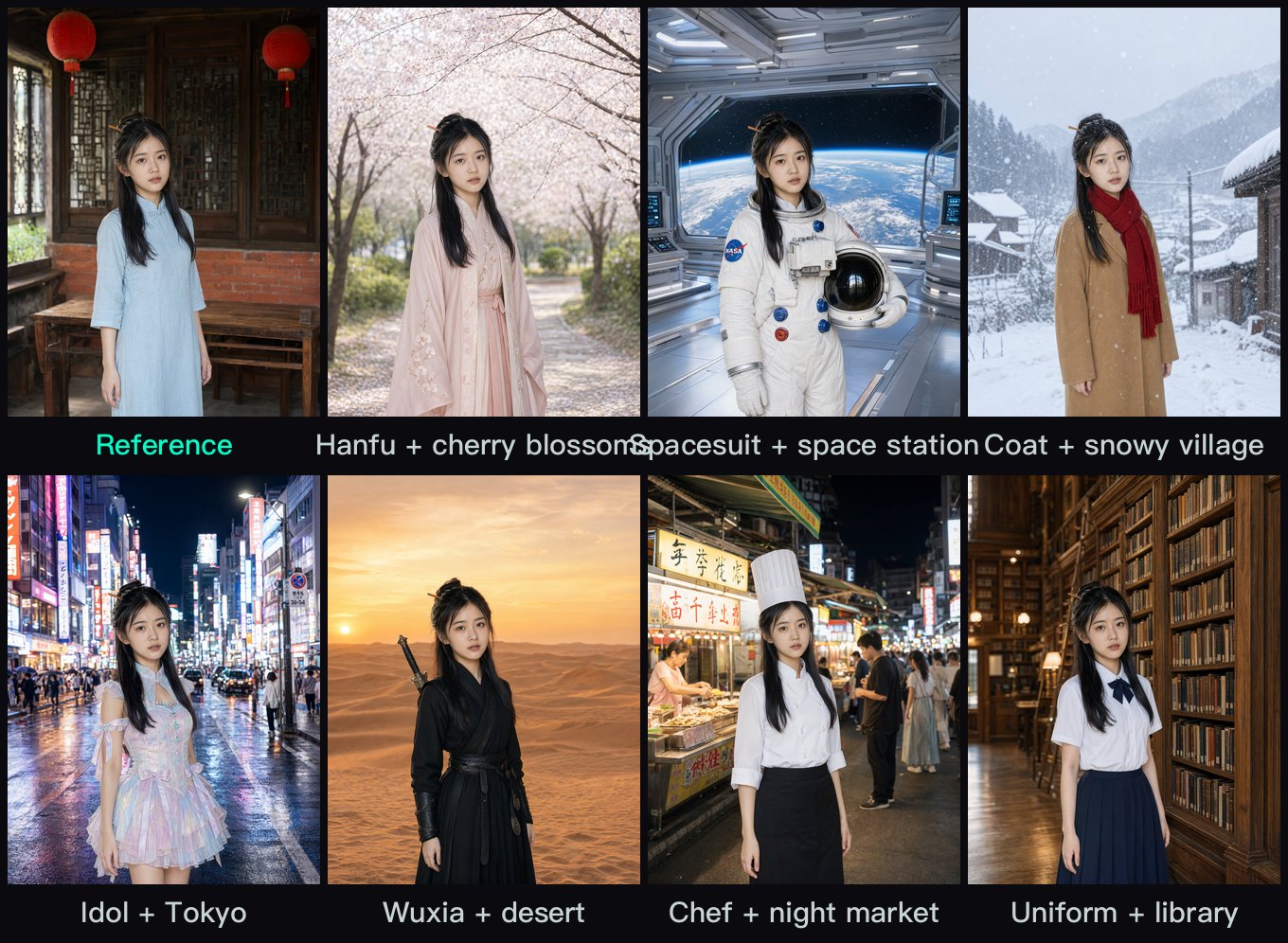
Seven combos, one face, one position. Together with the 16 single-change images, that's enough for a stop-motion style quick-cut short.
Text in images: a Chinese sign came out right, with two misses elsewhere
I prompted for a sign reading 巷口阿伯的燒餅油條 ("Uncle's sesame flatbread and fried dough sticks at the alley entrance"). All eight Traditional Chinese characters came out correct, including dense ones like 燒, 餅 and 條.
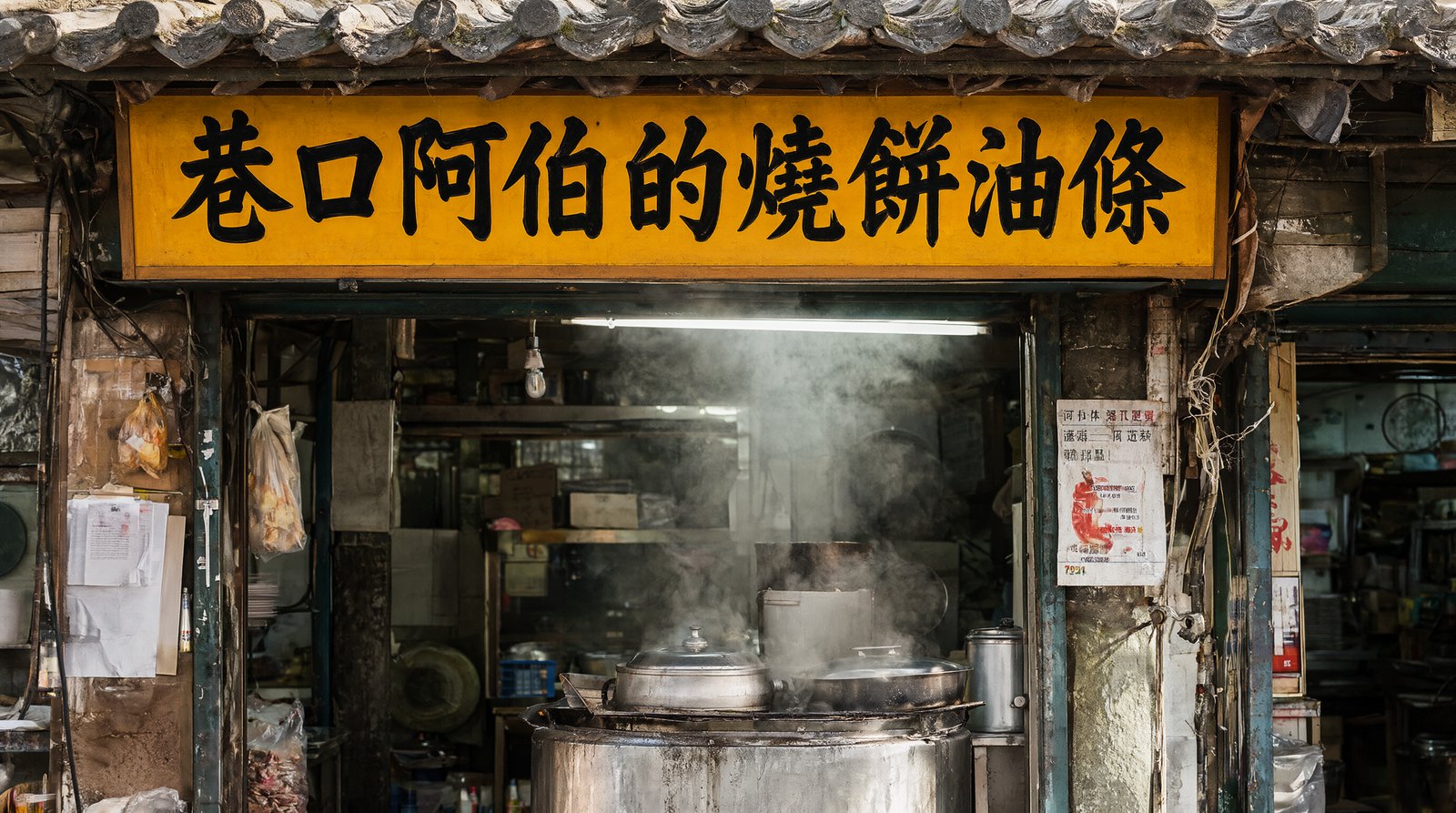
Two other tests each had one miss.
An English travel poster: headline "VISIT TAIPEI AT NIGHT", bottom line "Night markets · Hot springs · Bubble tea". Spelling was correct. But Taipei 101 runs through the headline and hides the N in NIGHT; only its right stroke shows.
A chalkboard coffee menu in Chinese and English, with prices: Ethiopia 180, Kenya 200, Alishan 220, Latte 150. All the English and all four prices were right. The miss: in 衣索比亞 (Ethiopia), 亞 is drawn in its simplified form 亚, while the next line, 肯亞 (Kenya), uses the traditional 亞.
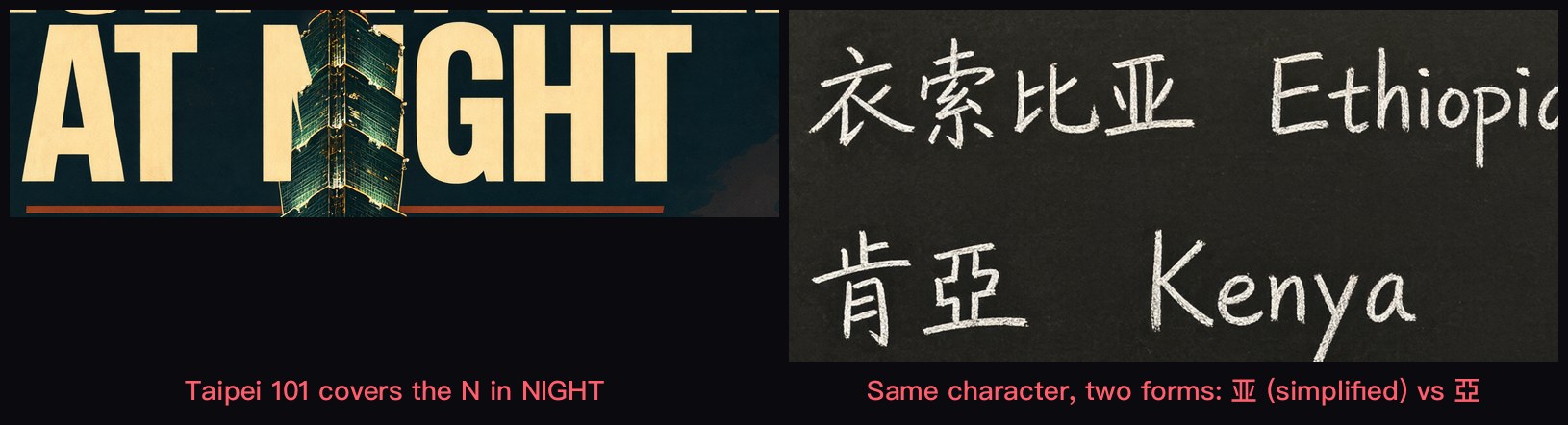
The model makes up any text you don't specify. The stall signs in the night-market images are Chinese-looking strokes that aren't real characters. Put every word you need in the prompt. For dense small text, add it in a layout app afterward.
Transparent PNG straight out of the model, no background removal
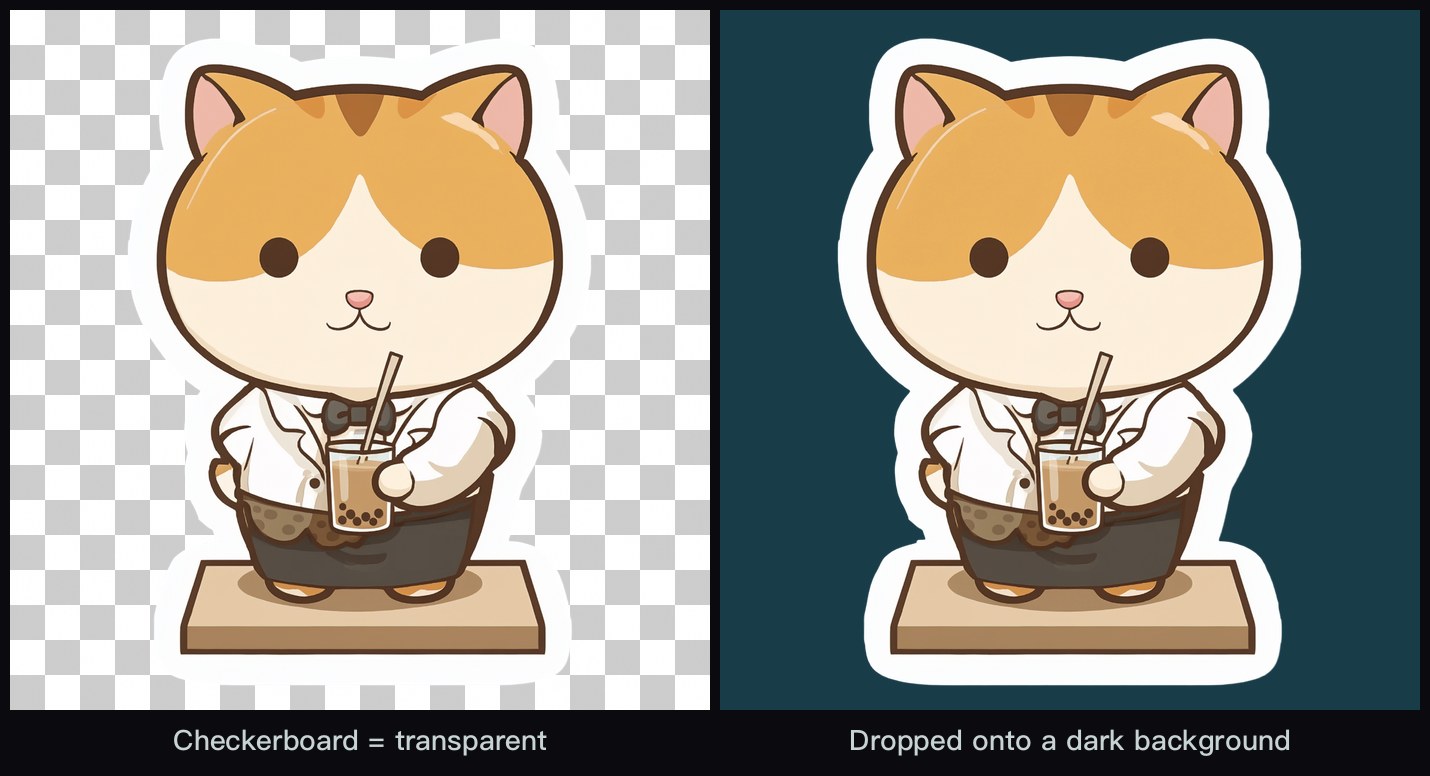
Qwen-Image 2.1 can output an alpha channel (the per-pixel transparency layer in a PNG). Wrap your description in two fixed sentences:
This is an RGBA image with transparency. <description> The image has alpha channel and the background is transparent.
My test was a cat barista sticker holding bubble tea. The output is an RGBA PNG. On a checkerboard and on a dark teal background, the edge is clean with no white fringe.
Speed: about 5.5 s per edit on the 5090, about 11 s on a modded 2080 Ti
Speed isn't why I'd pick this model, so this is short. Each number is from warm runs, three per test. The two machines use different settings, so the rows aren't a head-to-head comparison. The 5090 column is the machine that made the images in this post.
| Task | RTX 5090 (int8, 40 steps) | Modded RTX 2080 Ti 22GB (turbo int8, 6 steps) |
|---|---|---|
| 1024x1024 generate | ~6.4 s (~1.2 s with a 4-step LoRA) | ~7.5 s |
| Edit with reference | ~5.5 s (768x1024) | ~10.8 s |
| 1536x2048 generate | ~22.5 s | not run |
The modded 2080 Ti is my everyday setup at home. Turing has no bf16, so ComfyUI needs to be switched to fp16 to be fast. Details below.
Deep dive: settings, prompts, two ComfyUI 0.37 gotchas, and raw timings
You can skip this section; nothing above depends on it. It's here for anyone who wants to reproduce the results, or hand the whole post to an LLM.
Machine and settings
- RTX 5090 32 GB, ComfyUI 0.37.0, torch 2.13.0+cu130, comfy-kitchen 0.2.35.
- Model files as in the table above. The text encoder is the heretic (de-refusal) variant of
qwen3vl_8b_w4a8. The official one refuses some prompts, so I use this one daily. Nothing in this post would be refused. - Sampling: 40 steps, euler, simple, cfg 1.0. No speed LoRA on any article image.
- Resolutions: reference 1536x2048; every outfit, location and combo edit at
resolution1536, output 1344x1760; sign 2752x1536; poster 1536x2048; menu and sticker 2048x2048. - Sampler start: the
latentoutput ofText Encode Qwen Image 2.1, not anEmptyLatentImage. - Seeds: reference from 202001 to 202003, picked 202002.
- Outfits: Hanfu, uniform, chef, spacesuit, idol and wuxia one run each (303000, 303001, 303003, 303004, 303006, 303007). Suit and coat, after the prompt fix, 3 seeds each; picked 707000 and 707003.
- Locations: 808000 to 808007 one run each; the library drifted, so 3 more seeds, picked 909132.
- Combos: coat + snow 809002, idol + Tokyo 809003, uniform + library 809006 on the first try; Hanfu + cherry blossoms, spacesuit + space station, wuxia + desert, chef + night market 3 seeds each, picked 909022, 909033, 909077, 909099.
- All images regenerated on 2026-10-09.
The base prompt (text-to-image, no reference)
Full-body photograph of a young Chinese woman in her twenties standing in the exact center of the frame, facing the camera, long black hair in a half-up bun with a simple wooden hairpin, oval face, small mole under her left eye. She stands in an old Taiwanese tea house: dark wooden lattice windows, two hanging red paper lanterns, a red brick wall and a low wooden tea table behind her. She wears a pale-blue cotton qipao. Soft afternoon window light from the left, photorealistic, 50mm lens, natural skin texture.
The location prompt (night market)
The same woman from <image1>, with exactly the same face, the same small mole under her left eye, the same hairstyle with the wooden hairpin, the same pale-blue qipao and the same standing pose. Keep exactly the same framing, crop and camera distance as <image1>. Only change the background and lighting: she now stands in a busy Taiwanese night market at night with glowing food stalls. Photorealistic, natural light matching the new scene.
Why the first batch drifted: the canvas didn't match the reference
For the first batch I wired a 1536x2048 EmptyLatentImage into the sampler. At resolution 1536, Text Encode Qwen Image 2.1 resizes the reference to 1344x1760, so the two sizes disagreed. The node's own tooltip in the ComfyUI source says exactly this about its latent output: "Empty latent on the first reference image's size, to match with sampling as any other size shifts the edit." That latent is empty (all zeros). It carries no pixels from the reference; its job is to make the canvas the same size. The template's custom_size switch, when on, takes the same path my first batch did.
I measured the eye midpoint and eye distance in both batches with the YuNet face detector, after resizing every image to 1344x1760:
| Batch | Images | Eye midpoint x | Eye midpoint y | Eye distance |
|---|---|---|---|---|
| First (my own 1536x2048 canvas) | 17 | 548–634 | 501–696 | 54.5–83.1 (±18.9%) |
| Final (node's latent output) | 24 | 611–627 | 645–661 | 73.5–79.6 (±3.9%) |
Both include the reference itself (midpoint 618, 650; eye distance 79.2). The worst first-batch outliers were the suit and the coat (eye distance 58.4 and 54.5, pulled back) and the cherry-blossom shot (x drifted to 548).
The suit and coat still went wide on the right canvas
With the canvas fixed, the suit and coat edits still came out as full-body shots. Rerolling didn't help: 3 seeds each on the same prompt, all six landed at eye distance 51.3–59.3, against 79.2 for the reference.
For the second round I changed two things at once: I added Keep exactly the same framing, crop and camera distance as <image1>. and dropped the heels and boots from the outfit descriptions. Again 3 seeds each; all six came out at 77.7–79.5. I didn't test the two changes separately, so the how-to keeps both.
Small pose drift in the outfit set
Face and background are stable across the outfit set. Hands and stance adjust slightly to the clothes. The prompt says "the same standing pose", but the spacesuit requires holding a helmet under the left arm.
ComfyUI 0.37.0 gotcha 1: two required inputs on the text encode node
In 0.37.0, TextEncodeQwenImage21 requires two inputs, negative_prompt and resolution. A hand-built workflow that leaves either out fails through the API with HTTP 400 and this error type:
required_input_missing
Add both inputs to the node and the request goes through.
Gotcha 2: an identical workflow hits the cache in 0.0 s
Submit the exact same workflow twice and ComfyUI returns its cached result: 0.0 s and the same filename. Change the seed when you benchmark, or when you actually want a new image.
Regular outputs carry an alpha channel too
Even without the transparency sentences, outputs are RGBA PNGs. The alpha isn't all 255; the lowest value I saw was 251, far too small a change to see. Convert to RGB before compositing or putting the image on the web.
Raw speed table
Method: warm, three runs each, seed changed every run, timed from submit to image. The first run is slower because it loads the model and the reference image; the tables in the main text use the later runs.
| Machine | Task | Runs (s) |
|---|---|---|
| RTX 5090 | 1024x1024, 4-step LoRA | 2.26 / 1.22 / 1.20 |
| RTX 5090 | 1024x1024, 40 steps | 6.88 / 6.37 / 6.40 |
| RTX 5090 | 768x1024 edit, 40 steps | 7.4 / 5.5 / 5.5 |
| RTX 5090 | 1536x2048 generate / edit, 40 steps | ~22.5 / ~32.7 |
| RTX 2080 Ti 22GB | 1024x1024 generate, Viggle 6-step int8 | 8.9 / 7.5 / 7.6 |
| RTX 2080 Ti 22GB | 1024 edit, Viggle 6-step int8 | 16.6 / 10.8 / 10.8 |
Why no article image uses the 4-step LoRA
The 4-step LoRA is the 4step-lora-r64 file from Viggle/Qwen-Image-2.1-viggle-turbo. The LoRA's README says complicated edits, including identity-preserving ones and instructions with several constraints, can still fall short of the base model, with identity drift.
Getting the 2080 Ti fast: fp16, then the 6-step turbo
The 2080 Ti runs the same repo's v0.3-6step-int8_convrot merged checkpoint at 6 steps, cfg 1.0. Turing has no bf16, so ComfyUI falls back to fp32, which is slow. I added fp16 to ComfyUI's QwenImage21.supported_inference_dtypes and moved to torch 2.9.1+cu130. The same int8 40-step job went from 159 s to 42 s. Then I switched to the 6-step turbo checkpoint, which gives the 7.5 s per 1024x1024 image above.
FAQ
- How do I keep the same face when changing a character's clothes in Qwen-Image 2.1?
- Feed one reference image into the Text Encode Qwen Image 2.1 node, sample on that node's own latent output so the canvas matches the reference size, and write the prompt in three parts: everything that must stay (face, mole, hairstyle and hairpin, pose, background), the line 'Keep exactly the same framing, crop and camera distance as <image1>.', then 'Only change her clothing' plus the new outfit. That gave me 8 outfits where the face, the mole and the wooden hairpin never changed, and the face barely moved in the frame. No character LoRA needed.
- Can Qwen-Image 2.1 render Chinese text correctly?
- Mostly. A shop sign reading 巷口阿伯的燒餅油條 came out with all 8 Traditional Chinese characters correct, including dense ones like 燒, 餅 and 條. On a chalkboard menu it drew 亞 in its simplified form 亚 on one line and correctly on the next. Small background text you didn't ask for gets invented, so put every word you need in the prompt.
- How fast is Qwen-Image 2.1 on an RTX 5090?
- With the int8 model at 40 steps, warm: about 6.4 s for a 1024x1024 image, about 5.5 s for a 768x1024 edit with a reference image, and about 1.2 s at 1024x1024 with a 4-step LoRA. A 1536x2048 text-to-image render took about 22.5 s.
- Can Qwen-Image 2.1 make transparent PNGs?
- Yes. Wrap the description in two fixed sentences: 'This is an RGBA image with transparency.' before it and 'The image has alpha channel and the background is transparent.' after it. The output is an RGBA PNG with a clean edge and no white fringe on a dark background, so you skip the background-removal step.
Read next
- 2026-10-08FastH3 on an RTX 5090: a 5-second talking clip in under a minute, 2.9x faster than MiniMax-H3
FastH3 V2 made a 5 s, 1344x768 talking clip in 57-60 s on my RTX 5090 in stock ComfyUI, 2.9x faster than MiniMax-H3 at 20 steps. Mandarin survived the cut.
- 2026-10-08Kandinsky 6.0 Pro on an RTX 5090: lip-synced English dialogue works, Chinese isn't quite there yet
I ran Kandinsky 6.0 Pro on an RTX 5090: English dialogue came out word-perfect, Chinese was accented but understandable, and NVFP4 cut a clip to 141.5 s.
- 2026-08-23[Benchmark] MiniMax-H3 1080p Isn't Unsupported, It's Three and a Half Hours
Three mistakes shooting a wuxia scene in MiniMax-H3: a 502 that wasn't a rejection, blur upscaling can't fix, and a prompt that described a face instead of naming one.
- 2026-09-13[Benchmark] Roll cheap, then enhance the keeper: NVIDIA's two-stage MiniMax-H3 + LTX-2.5 pipeline explained
NVIDIA's Sol-H3 two-stage recipe on an RTX 5090: MiniMax-H3 drafts at 672×384 in 25.5 s, LTX-2.5 refines only the take you keep. Downloadable ComfyUI workflow.
Don't miss the next one
Subscribe, and you won't.
One-click unsubscribe anytime.